***This document provides helpful tips to improve your site's accessibility. While it doesn’t guarantee 100% compliance, it’s a great starting point to make your website more inclusive and user-friendly.***
Identification
Accesskey attribute values must be unique across all elements (Rule ID: accesskeys)
Applicable Standards
Deque Best Practice
Keyboard Accessibility Guidelines
Impact
Serious level impact affecting:
Blind users
Low vision users
Users with mobility impairments
Proper Implementation
Ensure unique accesskey values across all elements
Avoid conflicts with browser default shortcuts
Consider cross-language compatibility
Use logical and memorable key assignments
Document accesskey usage for users
Examples of Correct Usage
Unique
accesskeyValues for Different Elements:
Each element is assigned a uniqueaccesskeyvalue (h,a,c), ensuring no conflicts during navigation.

Logical and Memorable Key Assignments:
The
accesskeyvalues are logically tied to the element's label (e.g.,sfor "Submit",ffor "Find"), making them easy for users to remember.

Unique
accesskeyValues on the Same Page:
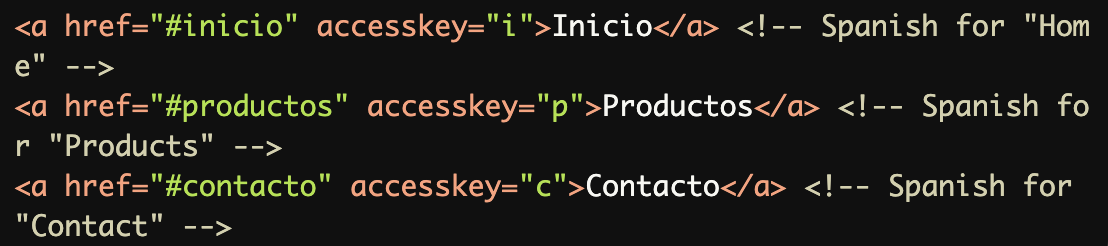
Uniqueaccesskeyvalues (n,s,p) are assigned across the navigation links, avoiding conflicts.

Avoiding Browser Shortcut Conflicts:
Theaccesskeyvalues avoid conflicting with common browser shortcuts (e.g.,Alt+Ffor File Menu) by using less commonly used letters (u,l).

Cross-Language Compatibility:
Theaccesskeyvalues are designed to be intuitive for Spanish-speaking users, matching the first letter of each label.
Common Errors to Avoid
Duplicate
accesskeyValues:
Both links use the sameaccesskey(h), causing conflicts and making navigation unclear for users.

Conflicting with Browser Shortcuts:
Theaccesskeyvalues (fande) conflict with browser shortcuts likeAlt+F(File menu) andAlt+E(Edit menu), reducing usability.

Using Non-Memorable Keys:
Theaccesskeyvalues (qandz) are unrelated to the element's label, making them harder for users to remember.

Applying
accesskeyto Non-Interactive Elements:
Theaccesskeyis applied to a non-interactive element (<p>), which is not accessible or meaningful for keyboard navigation.

Failing to Communicate
accesskeyUsage:
Theaccesskeyvalues are not documented anywhere on the page, leaving users unaware of their availability.

Rationale
Prevents keyboard command conflicts
Ensures predictable navigation
Improves keyboard accessibility
Reduces user confusion
Maintains consistent behavior
Note: Generally discouraged due to:
Inconsistent browser support
Potential conflicts with screen readers
Language localization challenges
Evaluation Method
Inspect the Code
Verify:
All
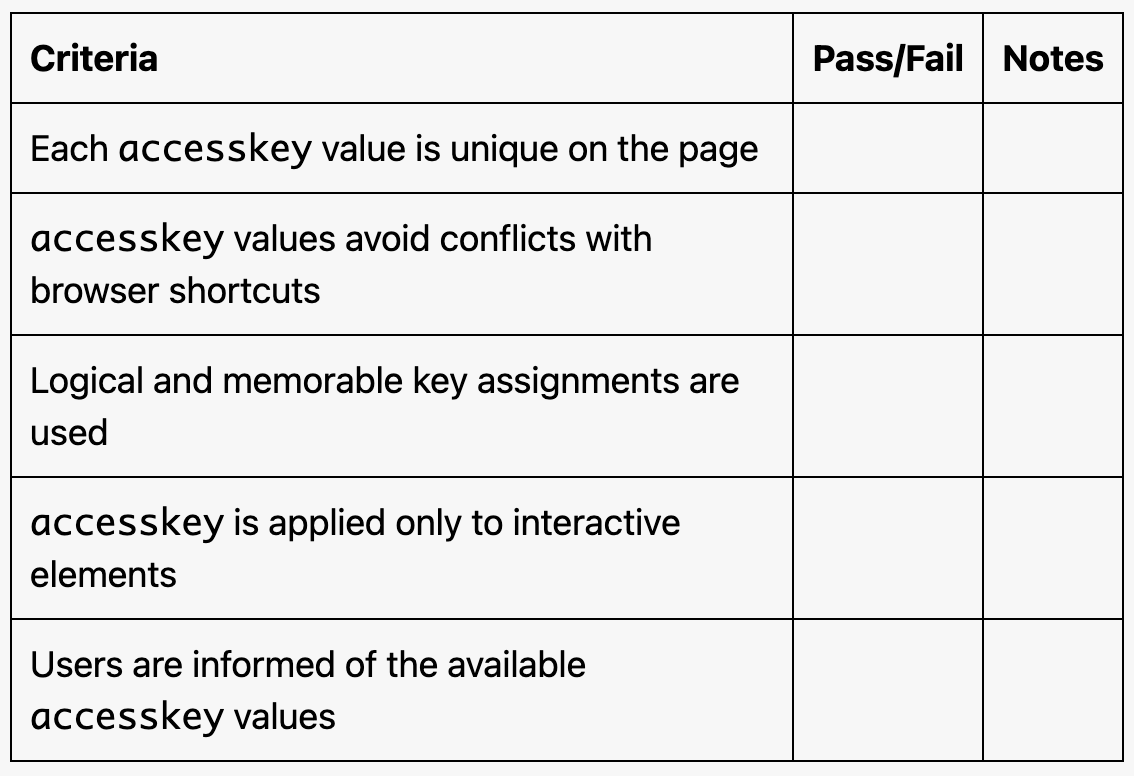
accesskeyvalues are unique on the page.Keys avoid conflicts with browser shortcuts.
Logical and meaningful key assignments are used.
accesskeyis applied only to interactive elements (e.g., links, buttons).
Test with Keyboard
Use keyboard shortcuts (e.g.,
Alt + accesskeyorAlt + Shift + accesskey, depending on the browser) to confirm:Navigation works as expected.
There are no conflicts between
accesskeyvalues or browser shortcuts.
Evaluation Checklist