***This document provides helpful tips to improve your site's accessibility. While it doesn’t guarantee 100% compliance, it’s a great starting point to make your website more inclusive and user-friendly.***
Identification
Table cells using headers attribute must reference cells within the same table (Rule ID: td-headers-attr)
Applicable Standards
WCAG 2.0, 2.1, 2.2 Level A (1.3.1)
Section 508 (1194.22)
Trusted Tester (14.B)
EN 301 549
Impact
Serious level impact affecting:
Blind users
Deafblind users
Proper Implementation
Use
scopeattribute onthelementsProperly associate data cells with header cells
Use appropriate scope values:
col,row,colgroup,rowgroupEnsure header references are within the same table
Maintain proper table structure with
thead,tbody, andthelements
Examples of Correct Usage
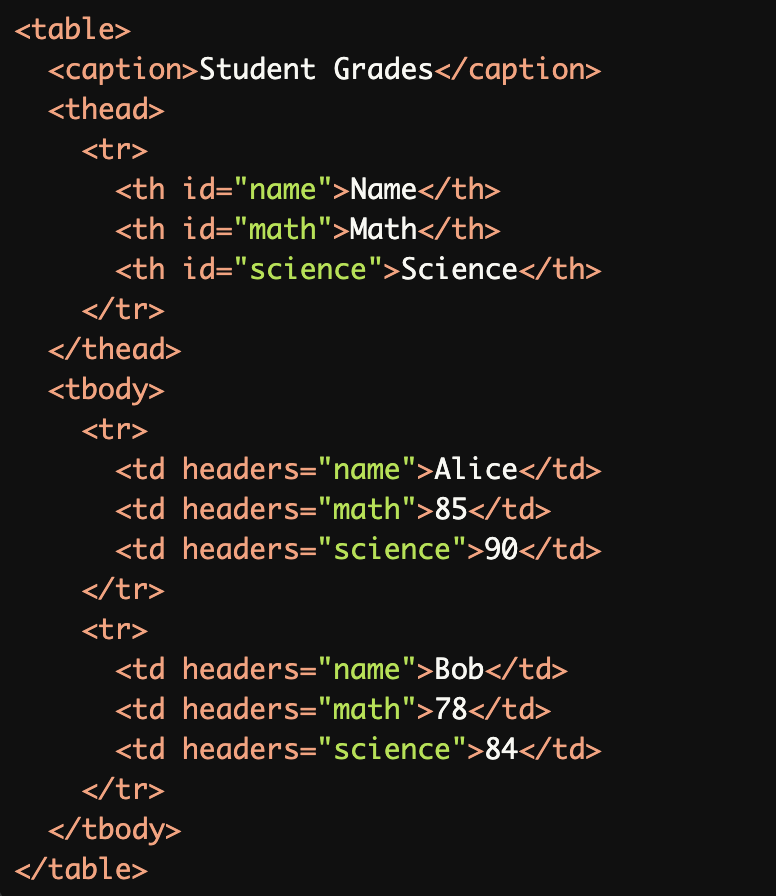
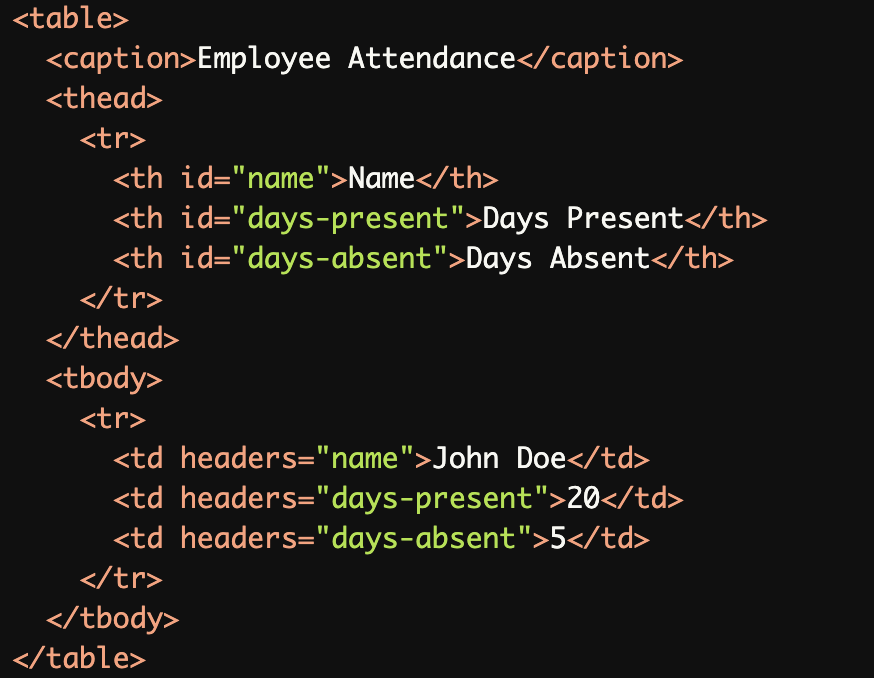
Simple Table with Proper
headersAttribute:
Each<td>has aheadersattribute correctly referencing theidof the corresponding<th>within the same table, ensuring proper screen reader navigation.
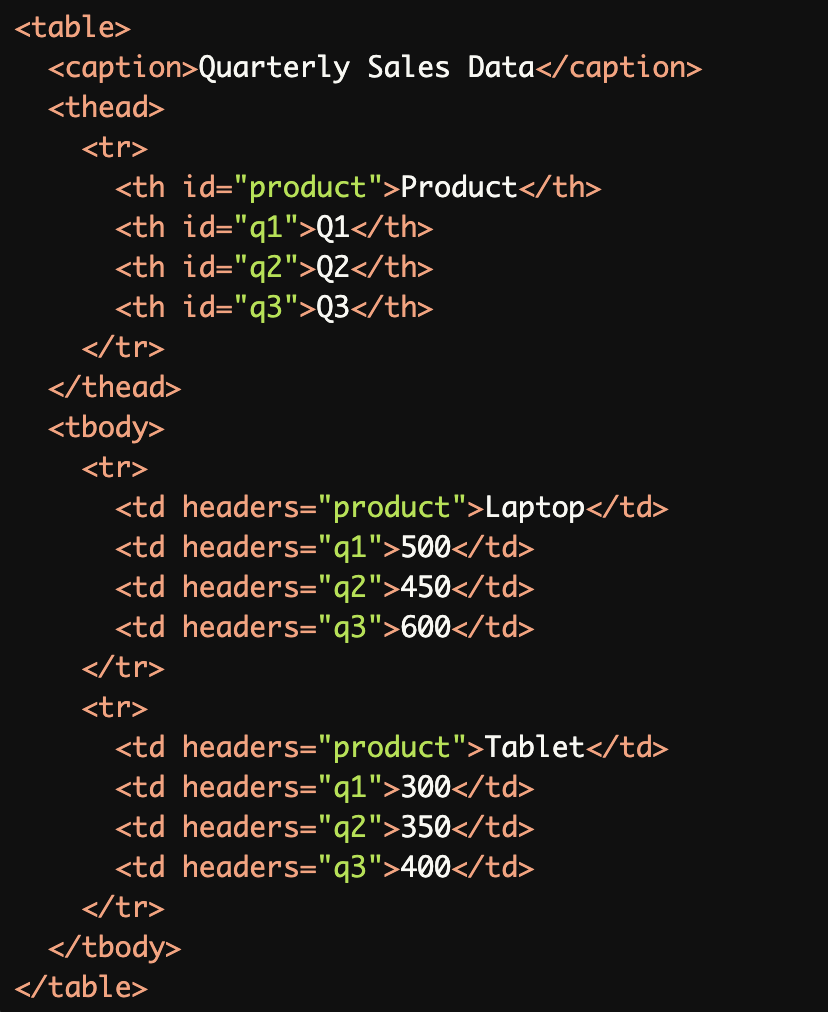
Complex Table with Multiple Headers:
Theheadersattribute in each<td>refers to the correct<th>elements, enabling screen readers to associate data cells with their corresponding headers.
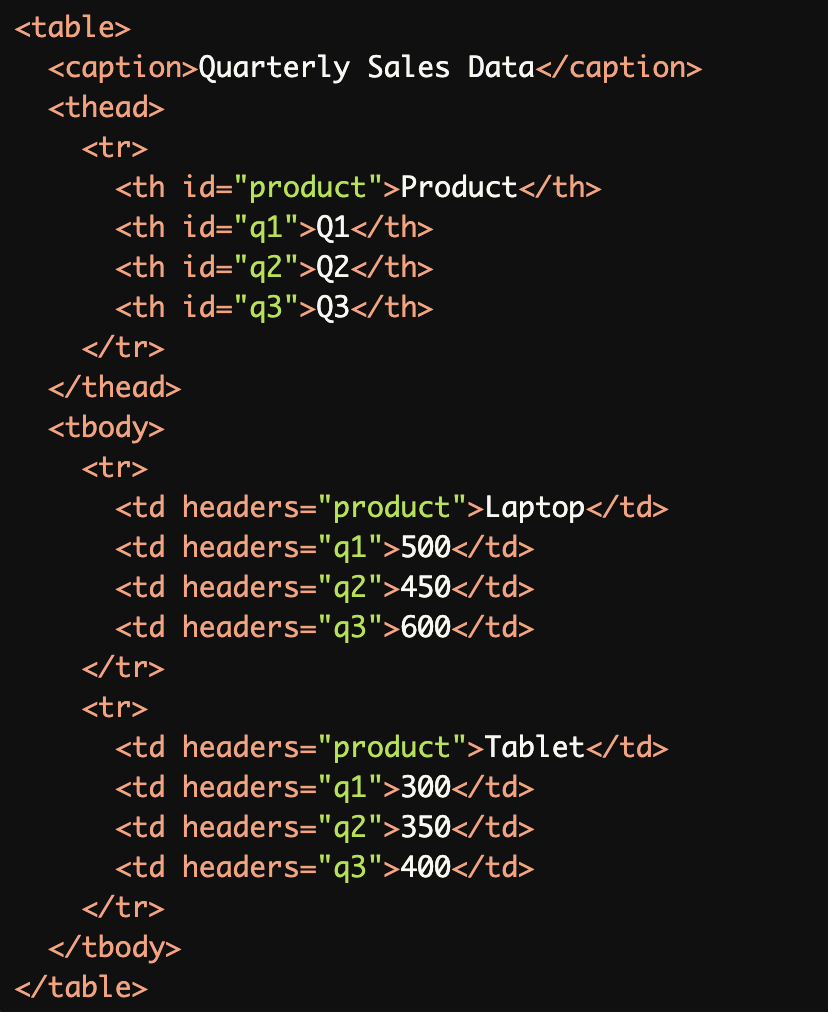
Using Scope Instead of
headersfor Simple Tables:
Thescope="col"attribute is used instead ofheadersfor simple tables, which is easier to implement and still ensures accessibility.
Properly Referencing Headers in a Merged Cell:
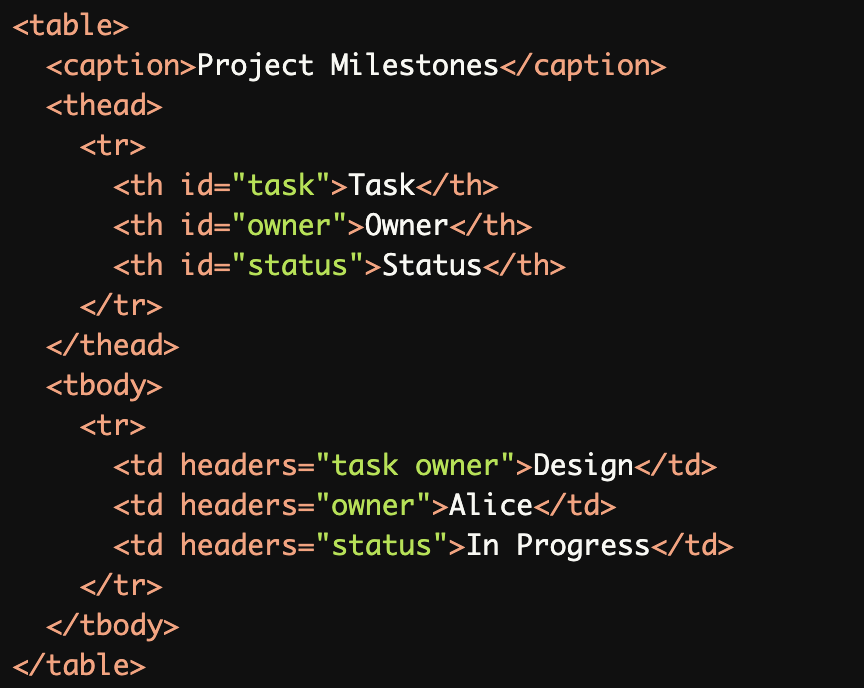
A single data cell references multiple headers (taskandowner), ensuring that screen readers can announce the correct context for the data.
Common Errors to Avoid
Missing Header References
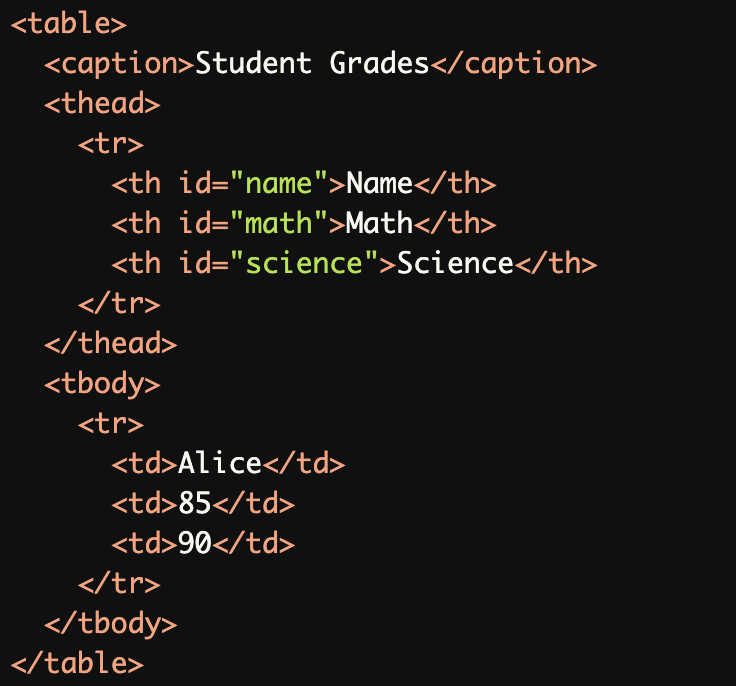
The<td>elements are missing theheadersattribute, making it difficult for screen readers to associate data cells with their corresponding headers.
Incorrect Header References:
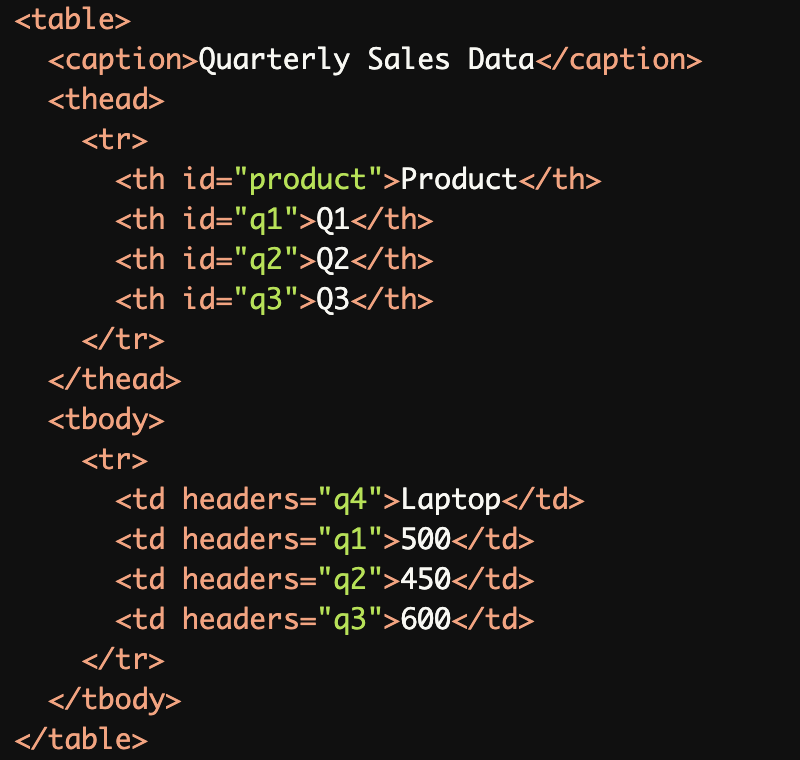
Theheaders="q4"in the first<td>refers to a non-existent header, breaking the relationship between data cells and headers for screen reader users.
Referencing Headers Outside the Table:
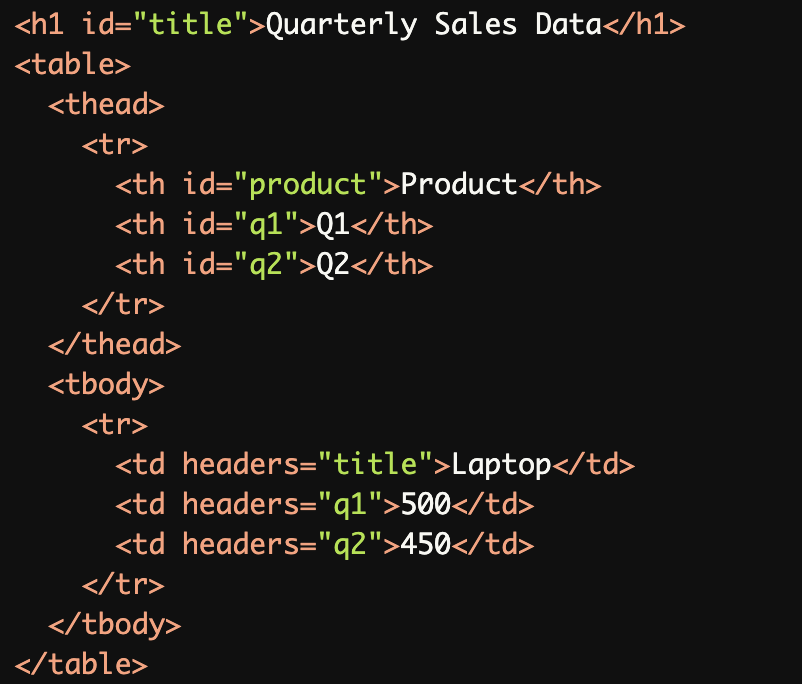
Theheaders="title"attribute references an element (<h1>) outside the table, which is not valid and causes accessibility issues.
Overusing
headersfor Simple Tables:
The use ofheadersfor every data cell in a simple table is unnecessary. Thescopeattribute is sufficient in this case.
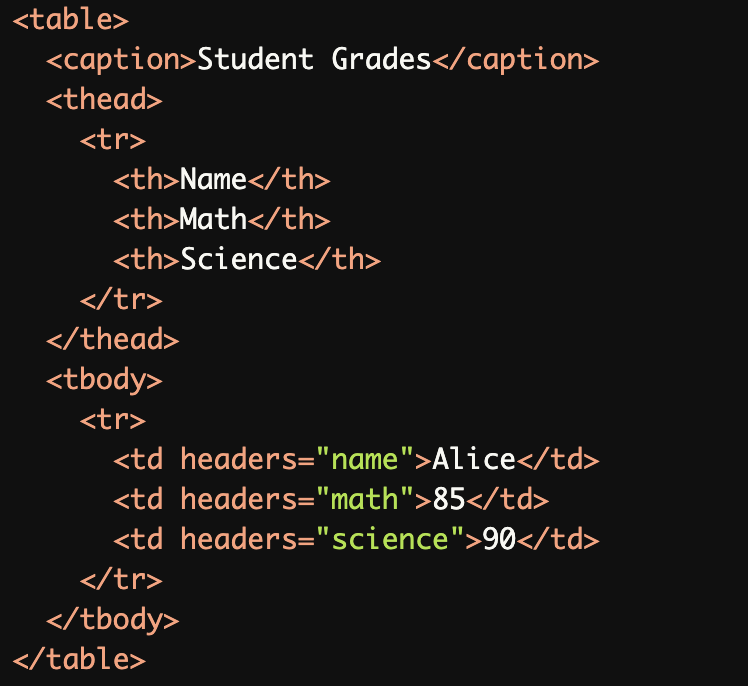
Missing id on Header Cells:
The<th>elements are missingidattributes, so theheadersattribute in<td>elements cannot reference them.
Rationale
Screen readers need proper table structure for navigation
Headers association helps users understand data relationships
Proper markup ensures accurate screen reader announcements
Helps users navigate complex tables effectively
Essential for understanding tabular data context
Evaluation Method
Inspect Table Structure
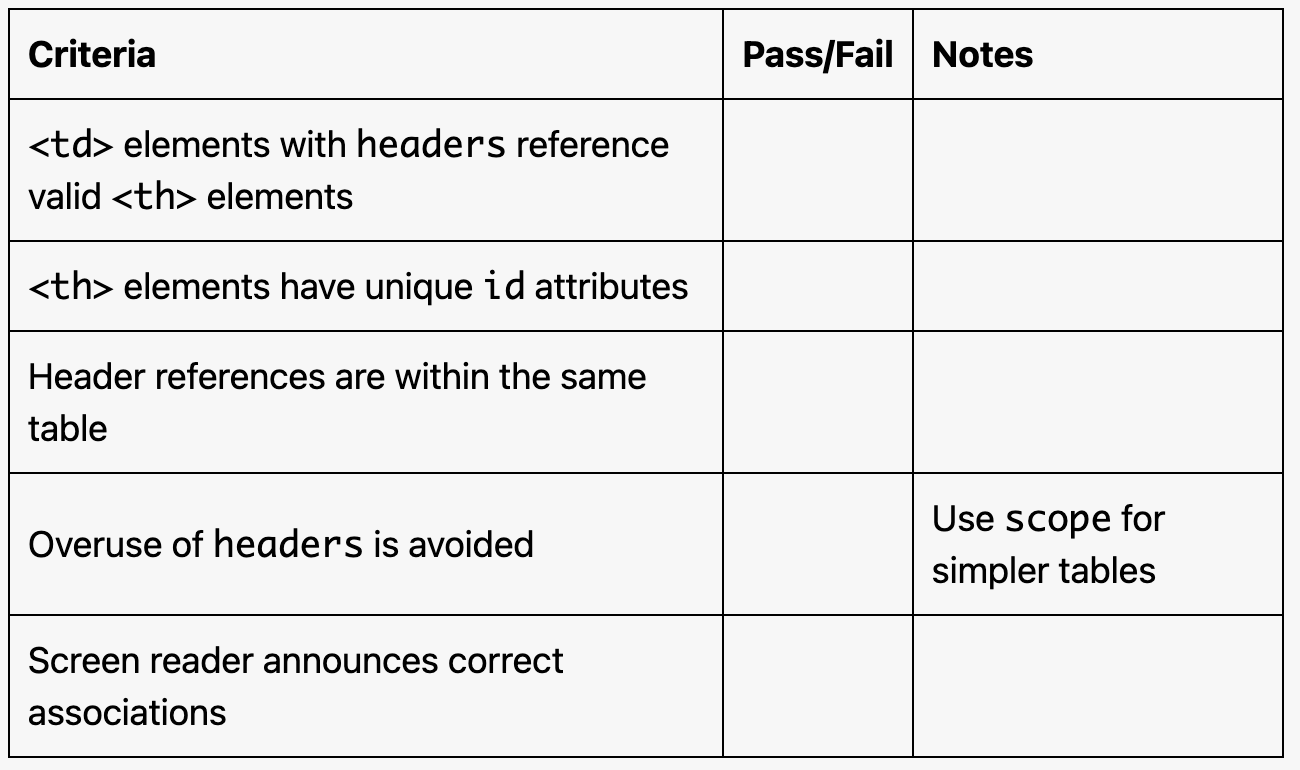
Confirm all
<td>elements withheadersattributes reference valididvalues within the same table.Verify that
<th>elements have uniqueidattributes.
Test with a Screen Reader
Use a screen reader (e.g., NVDA, JAWS, VoiceOver) to navigate the table.
Ensure the screen reader correctly announces the associated headers when focusing on a data cell.
Evaluation Checklist