***This document provides helpful tips to improve your site's accessibility. While it doesn’t guarantee 100% compliance, it’s a great starting point to make your website more inclusive and user-friendly.***
Identification
Image buttons (<input type="image">) must have alternative text (Rule ID: input-image-alt)
Applicable Standards
WCAG 2.0, 2.1, 2.2 Level A (1.1.1, 4.1.2)
Section 508 (1194.22)
Trusted Tester Guidelines
EN 301 549
Impact
Critical level impact affecting:
Blind users
Deafblind users
Users with mobility impairments
Proper Implementation
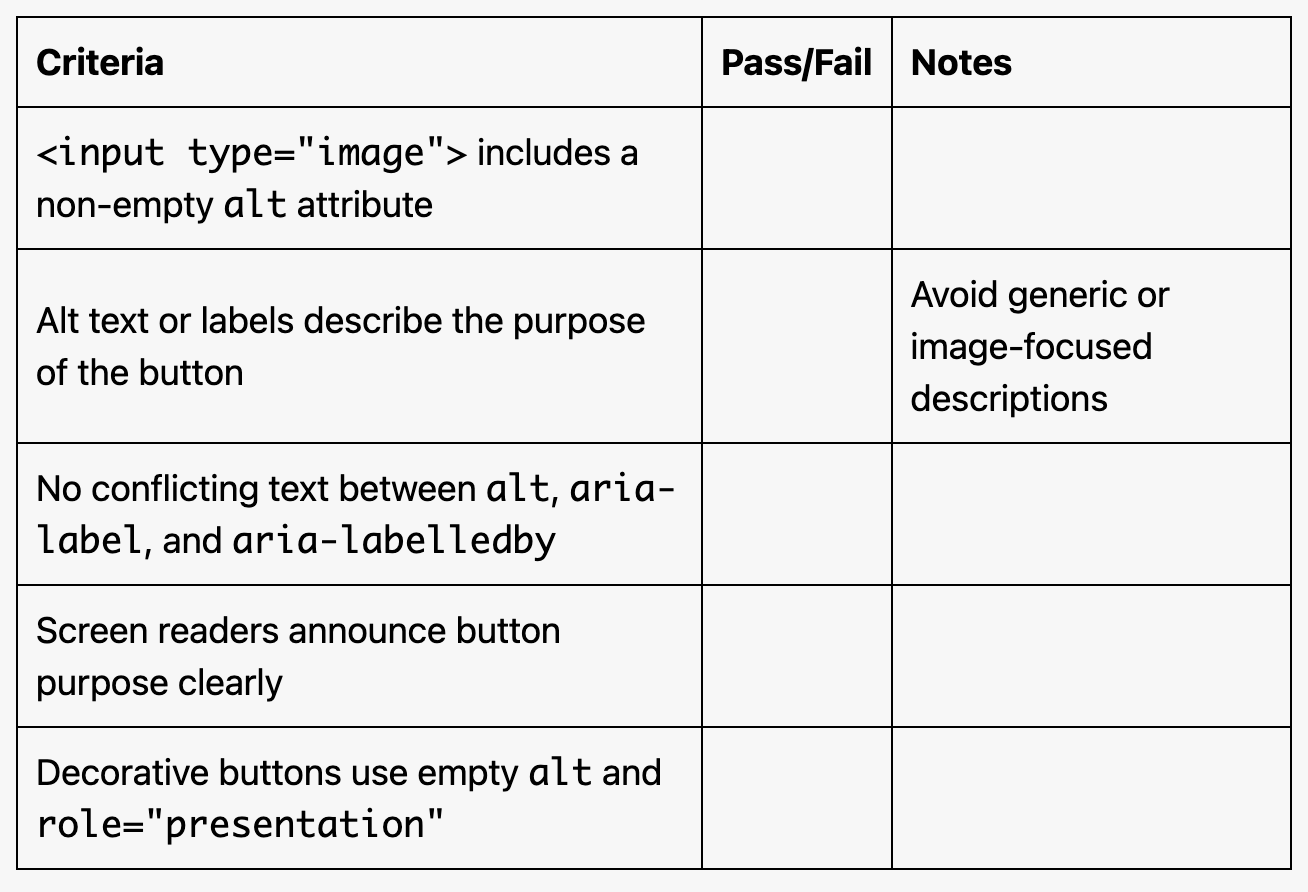
Image buttons must have:
Non-empty alt attribute, or
aria-label attribute, or
aria-labelledby reference
Text should describe the button's action, not the image
Label must be programmatically determinable
Alternative text should be clear and concise
Examples of Correct Usage
Using the
altAttribute:
Thealtattribute provides a clear and concise description ("Search"), indicating the image button's purpose to screen reader users.

Using the
aria-labelAttribute:
Thearia-labelattribute is used to provide accessible text for the button, ensuring screen readers announce its purpose.

Using the
aria-labelledbyAttribute:
Thearia-labelledbyattribute references an existing label (<label>with the IDupload-label), giving the button a programmatically associated description.

Decorative Image Buttons with
role="presentation":The alt attribute is empty, and role="presentation" is used to indicate that the image itself is decorative. The aria-label provides an accessible description of the button's purpose.

Contextual Alt Text for Specific Actions:
Thealttext describes the specific action ("View your shopping cart") rather than the image itself, ensuring clarity for screen reader users.

Common Errors to Avoid
Missing
altAttribute:
The missingaltattribute makes the image button inaccessible to screen readers, leaving users unable to understand its purpose.

Empty
altAttribute Without Context:
An emptyaltattribute without anaria-labeloraria-labelledbymeans the button has no accessible text, making it unusable for screen reader users.

Non-Descriptive Alt Text:
Thealttext ("Upload icon") describes the image rather than the button's action, failing to convey its purpose to users.

Providing Both
altandaria-labelwith Conflicting Text:
Conflictingalt("Homepage") andaria-label("Go to home") text creates confusion for screen reader users, as they may hear inconsistent descriptions.

Using Placeholder or Generic Alt Text:
Using generic alt text ("Button") does not provide meaningful information about the button's purpose, reducing usability for screen reader users.

Rationale
Screen readers cannot interpret image content
Users need to understand button purpose
Alternative text provides:
Button function description
Equal access to functionality
Clear user interaction purpose
Missing alt text creates barriers to form submission
Evaluation Method
Inspect the Code
Ensure that all
<input type="image">elements include at least one of the following:A non-empty
altattribute.An
aria-labeloraria-labelledbyattribute.
Verify that the text accurately describes the button's action, not its visual appearance.
Test with Assistive Technology
Use a screen reader (e.g., NVDA, JAWS, or VoiceOver) to navigate the page and confirm that the button's purpose is announced clearly.
Check whether the description matches the intended action.
Evaluation Checklist