***This document provides helpful tips to improve your site's accessibility. While it doesn’t guarantee 100% compliance, it’s a great starting point to make your website more inclusive and user-friendly.***
Identification
ARIA treeitem nodes must have an accessible name (Rule ID: aria-treeitem-name)
Applicable Standards
Deque Best Practice
Impact
Serious level impact affecting:
Blind users
Low vision users
Users with mobility impairments
Proper Implementation
Treeitem elements must have an accessible name using one of:
Inner text content
aria-label attribute
aria-labelledby reference
title attribute
Text must be discernible to screen readers
Examples of Correct Usage
Using Inner Text for Accessible Names:
Accessible names are provided using inner text (Folder 1,Folder 2), allowing screen readers to announce the tree items correctly.

Using
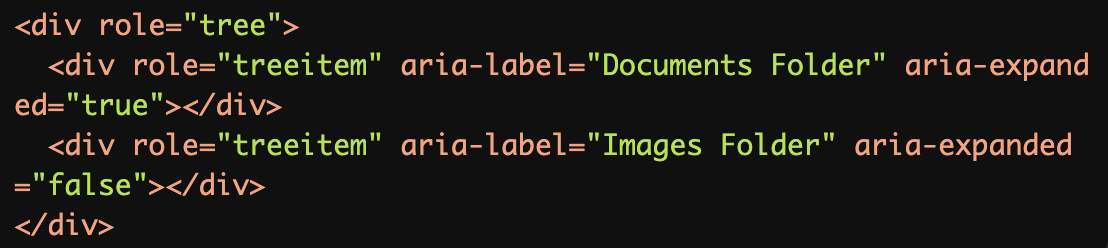
aria-labelfor Custom Labels:
Thearia-labelattribute provides accessible names (Documents Folder,Images Folder) for tree items with no visible text.
Using
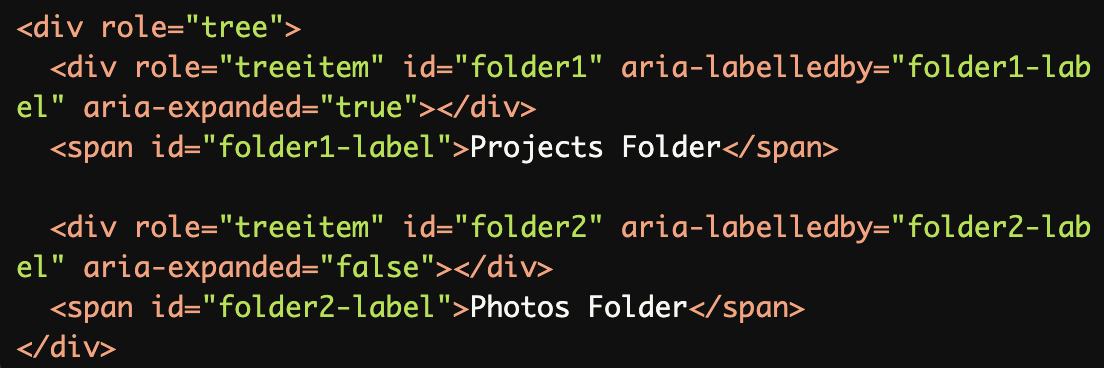
aria-labelledbyto Reference a Label:
Thearia-labelledbyattribute references external elements (folder1-label,folder2-label), providing accessible names for screen readers.
Using the
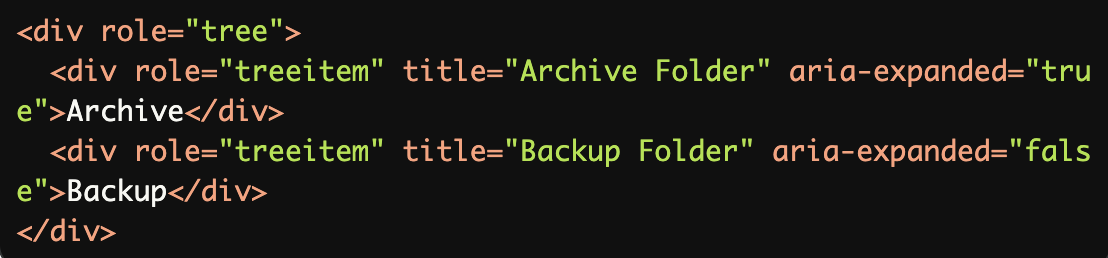
titleAttribute for Tooltip-Like Names:
Thetitleattribute provides additional accessible names (Archive Folder,Backup Folder) that are announced by screen readers.
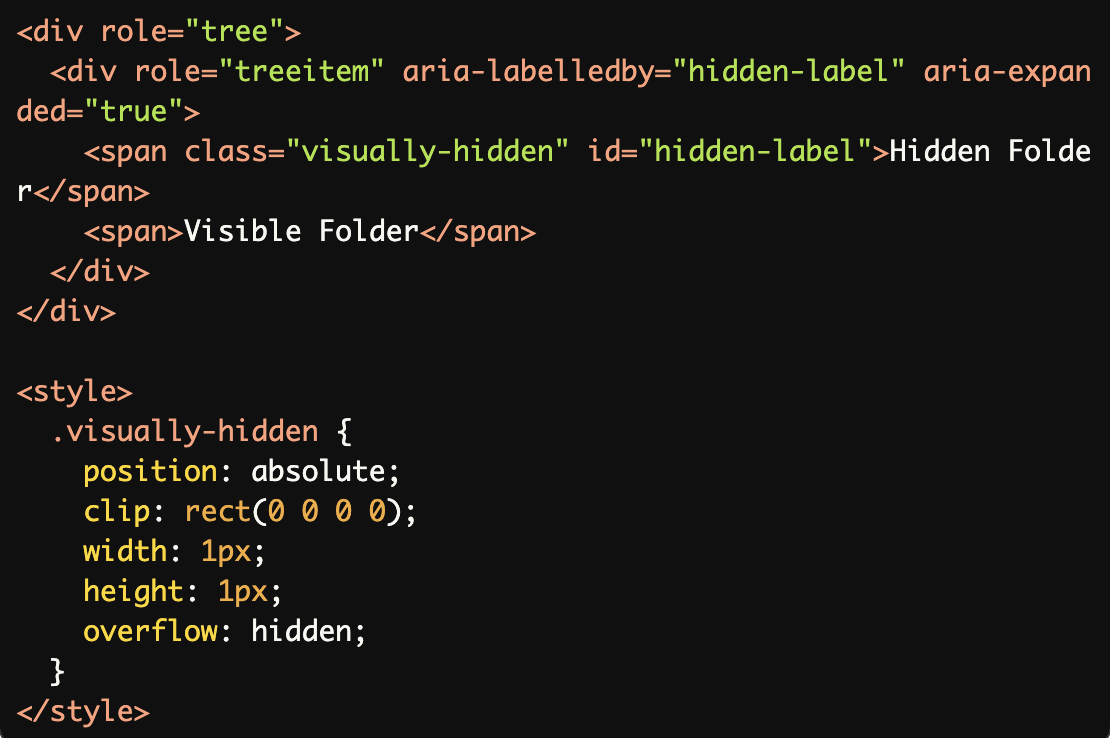
Combining Visual and Hidden Accessible Names:
A visually hidden label (Hidden Folder) is combined with visible text (Visible Folder) usingaria-labelledby, ensuring screen reader users get detailed information.
Common Errors to Avoid
Missing Accessible Name:
Tree items lack accessible names, resulting in screen readers announcing them as "blank" or "unlabeled."

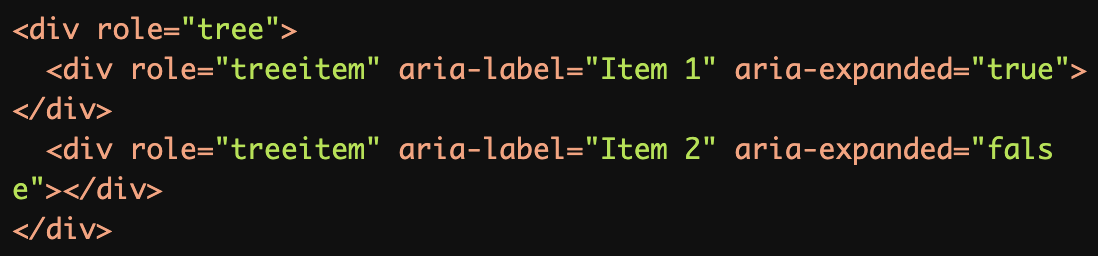
Using Non-Descriptive Names:
Non-descriptive labels like "Item 1" and "Item 2" fail to convey meaningful information about the tree items.
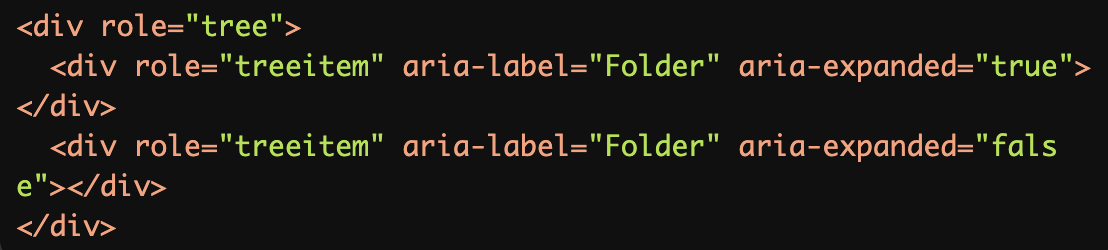
Duplicate Accessible Names:
Duplicate labels (Folder) confuse users navigating through the tree, as they cannot distinguish between the items.
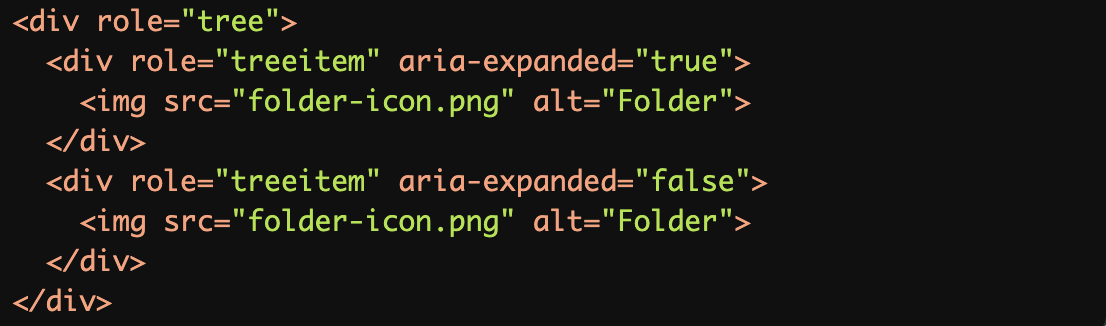
Over reliance on Visual Content Without Labels:
Thealttext (Folder) is too generic, and no accessible name is provided for the tree items, making them indistinguishable.
Using ARIA Roles Incorrectly:
The second item lacks therole="treeitem"attribute, making it inaccessible to screen readers as part of the tree structure.

Rationale
Essential for screen reader users to navigate tree structures
Ensures tree items are identifiable and meaningful
Enables proper hierarchical navigation
Critical for file system-like interfaces
Evaluation Method
Inspect the Code
Verify that:
Each
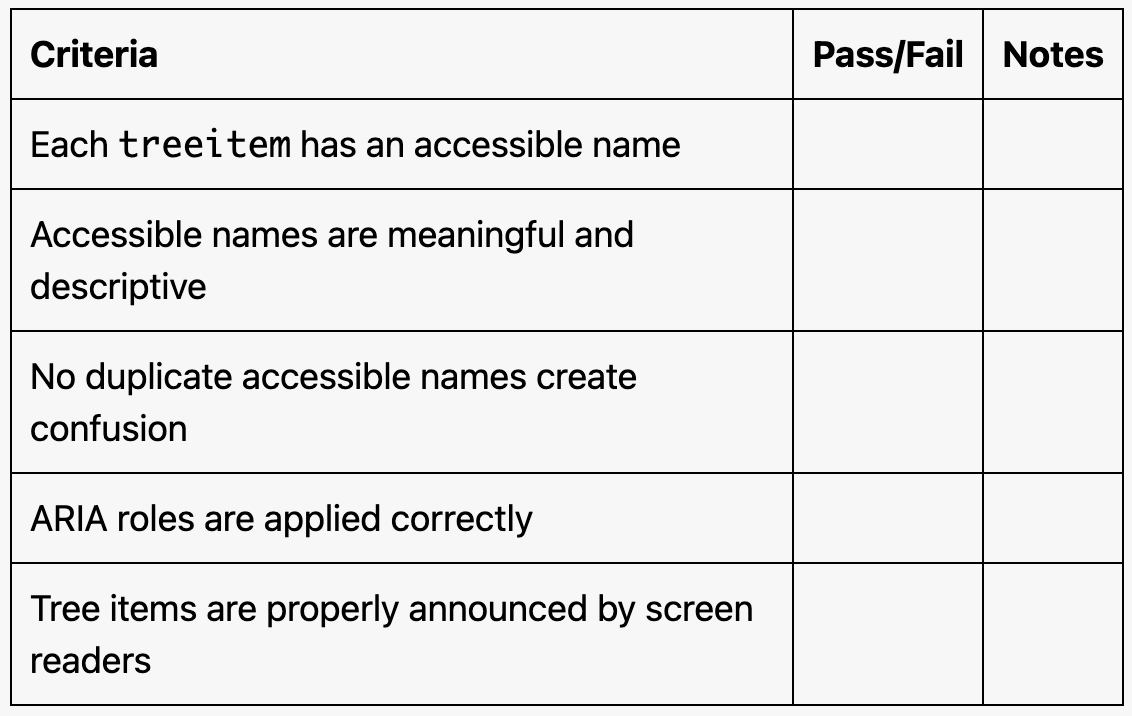
treeitemhas an accessible name provided by inner text,aria-label,aria-labelledby, ortitle.Accessible names are meaningful and descriptive.
No duplicate names exist unless intentionally part of the design.
Test with Assistive Technology
Use a screen reader (e.g., NVDA, JAWS, or VoiceOver) to confirm:
Tree items are announced clearly with their role and accessible names.
Navigation through the tree structure is logical and intuitive.
Evaluation Checklist